YouTube Comment GIFHow to post GIFs in YouTube comments, right now
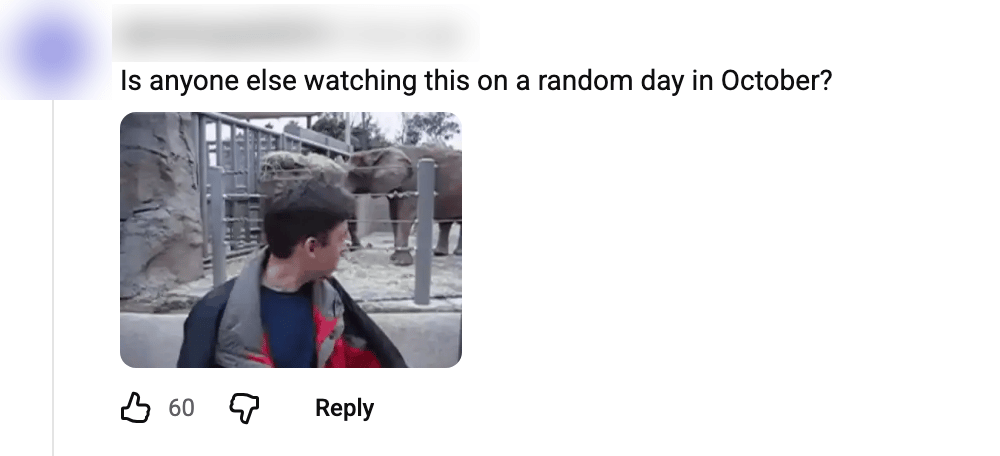
A YouTube comment GIF is an animated GIF posted as a comment or reply under a video. YouTube announced the feature in September 2026 and is rolling it out in the mobile app. The desktop site still has no GIF button, but a free browser extension adds one, and everyone can see what you post.
- Phone app
- Rolling out
- Desktop site
- No GIF button
How to Post a YouTube Comment GIF in Three Steps
You post a YouTube comment GIF from a computer by adding a GIF button to the comment box with the free Desktop GIFs extension. It takes about two minutes, needs no account, and the GIF shows up for every viewer, including people on phones and TVs.
 1
1Install the Desktop GIFs extension
Download the ZIP for your browser from the project's GitHub releases page. In Chrome, Edge or Brave, unzip it, open chrome://extensions, turn on Developer mode and choose Load unpacked. In Firefox, load the ZIP as a temporary add-on.
Chrome’s extensions page, Developer mode on
 2
2Open a comment box and click GIF
Go to any YouTube video or Short and click Add a comment or Reply. A new GIF button sits next to the emoji button. Click it to open the picker, then type a word such as clap, facepalm or lol to search.
The GIF button next to the emoji button. Screenshot: Desktop GIFs project
 3
3Click the GIF you want
Clicking a GIF posts it straight away, together with any text you typed. There is no preview step, so write your comment first. The result is an ordinary YouTube GIF comment that other viewers see without installing anything.
The picker after searching “cat”. Screenshot: Desktop GIFs project
Desktop GIFs is an unofficial, open-source project that is not affiliated with YouTube. It can stop working when YouTube changes its site, and using it is at your own risk under YouTube's Terms of Service.
Read the full guide with every install stepPhone or Computer: Where a YouTube Comment GIF Works
The official GIF button lives in the YouTube mobile app, and it is reaching accounts gradually. If you do not see it yet, the computer route below works today.
| Where you comment | GIF button | What to do |
|---|---|---|
| YouTube app on iPhone or Android | Rolling out since autumn 2026 | Update the app, open a comment box and look for GIF next to the emoji key. No button means the rollout has not reached your account yet. |
| youtube.com in Chrome, Edge or Brave | None from YouTube | Install Desktop GIFs from its ZIP. The button appears in open tabs without a refresh. |
| youtube.com in Firefox | None from YouTube | Load Desktop GIFs as a temporary add-on. Firefox removes it on restart, so load it again each time. |
YouTube Comment GIF Questions
- How do I post a GIF in a YouTube comment?
- In the YouTube mobile app, open a comment box and tap the GIF button if your account has it. On a computer, install the free Desktop GIFs extension, open a comment box, click the GIF button it adds next to the emoji button, and click a GIF. It posts immediately.
- Why is there no GIF button in my YouTube comments?
- YouTube announced GIF comments on September 23, 2026 and said they would reach the mobile app globally during the autumn. Accounts get the button at different times, and the desktop site does not have one at all. Updating the app is the only thing you can do on a phone.
- Can everyone see a GIF posted with the Desktop GIFs extension?
- Yes. According to the project, the GIF is sent as an ordinary YouTube GIF comment, so viewers see it on any device without installing the extension. This is different from older extensions, which only showed GIFs to people who had the same extension.
- Can I upload my own GIF to a YouTube comment?
- No. The Desktop GIFs project reports that YouTube only accepts GIFs from Tenor that are rated G, its rating for all audiences. A GIF file from your computer cannot be attached, and stickers and still images are left out too.
- Is a YouTube comment GIF extension safe to use?
- Desktop GIFs is open source under GPL-3.0, asks for no account and states that it collects nothing and never reads your YouTube credentials. It is still unofficial: it sends a field the desktop site does not use itself, so it may break, and using it is at your own risk under YouTube's Terms of Service.
- Can I add a GIF when I edit a YouTube comment?
- Not with the extension. It works for new comments and replies on videos and Shorts only. You cannot add a GIF while editing an existing comment or while writing a channel post.
Latest Guides
Step-by-step help for GIFs in YouTube comments.