How to Comment GIF on YouTube: Desktop and Phone (2026)
How to comment GIF on YouTube today. Install a free GIF button for Chrome and Firefox, use the phone app, see which GIFs YouTube accepts, and fix common errors.
If you want to know how to comment GIF on YouTube, the short answer depends on your device. In the YouTube phone app you tap the GIF button in the comment box, if your account has it yet. On a computer there is no GIF button, so you add one with the free YT Comment GIF browser extension. This guide covers both, with every step.
YouTube announced GIF comments on September 23, 2026 and said the feature would reach the mobile app globally during the autumn (Engadget). The rollout is gradual, which is why one person has the GIF button and the next does not.
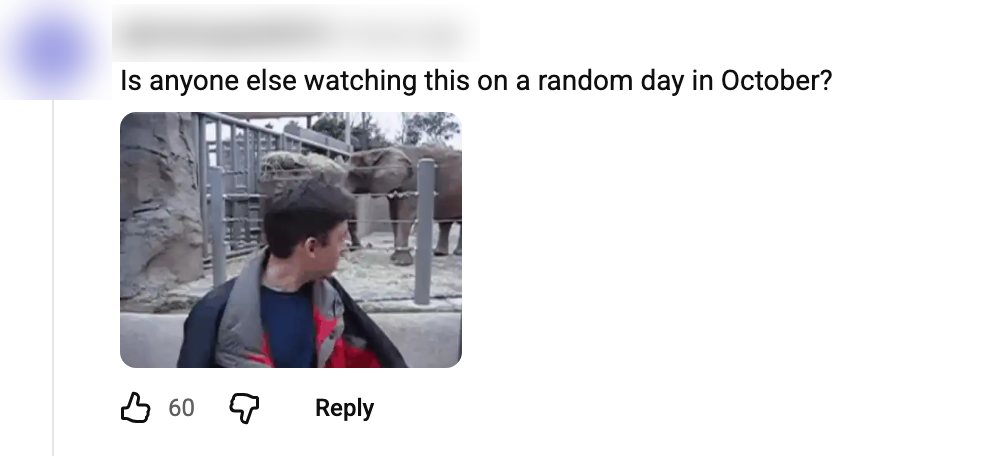
A real GIF comment under a YouTube video, captured October 14, 2026. The commenter's name is hidden.
How to Comment GIF on YouTube From a Computer
The desktop site has no GIF button of its own. The YT Comment GIF extension puts one next to the emoji button. A GIF you post with it is an ordinary YouTube GIF comment, so every viewer sees it without installing anything. The extension is free, open source and based on Desktop GIFs by rayytor.
It is waiting for review in the Chrome Web Store and Firefox Add-ons. Until it is listed, you load it from a ZIP file, which takes about a minute.
Chrome, Edge and Brave
- Download
yt-comment-gif-chromium.zipand unzip it. - Open
chrome://extensionsand turn on Developer mode in the top right corner. - Click Load unpacked and choose the unzipped folder, the one that has
manifest.jsondirectly inside it.
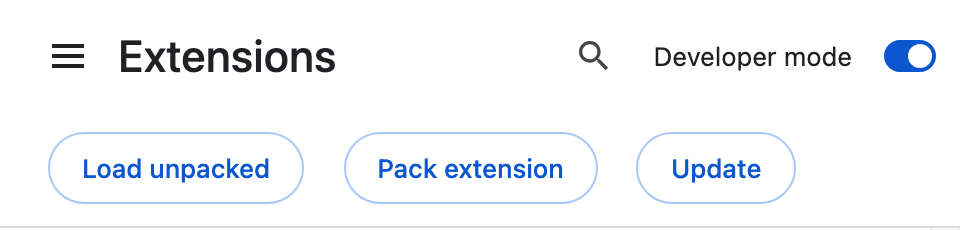
YouTube tabs that are already open get the GIF button without a refresh. Edge, Brave and other Chromium browsers install the same way from their own extensions page.
Firefox
- Download
yt-comment-gif-firefox.zip. Do not unzip it. - Open
about:debugging#/runtime/this-firefox. - Click Load Temporary Add-on and choose the ZIP.
Firefox removes an add-on loaded this way when the browser closes. Repeat steps 2 and 3 after each restart. Your starred favorites come back once the add-on is loaded again.
Post Your First GIF Comment
With the extension loaded, posting takes three clicks.
- On a video or a Short, click Add a comment or Reply.
- Click the GIF button next to the emoji button.
- Click a GIF.
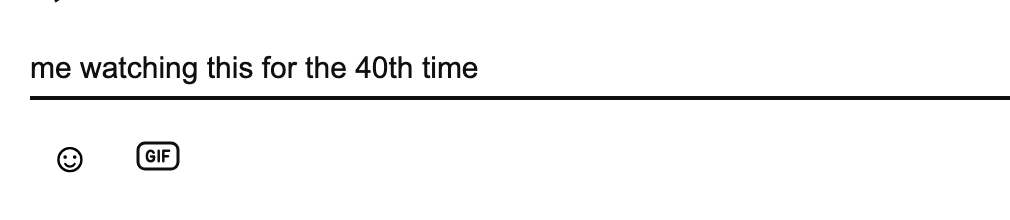
The GIF button sits next to the emoji button.
The GIF is posted straight away. There is no preview step, so type your text before you pick the GIF: anything in the comment box is posted together with it.
The picker opens with featured GIFs. To find a different GIF, type a word such as clap or facepalm, or paste a Tenor link. Point at a GIF and click the star to keep it as a favorite; the star button beside the search field shows your saved GIFs. Press Esc to close the picker.
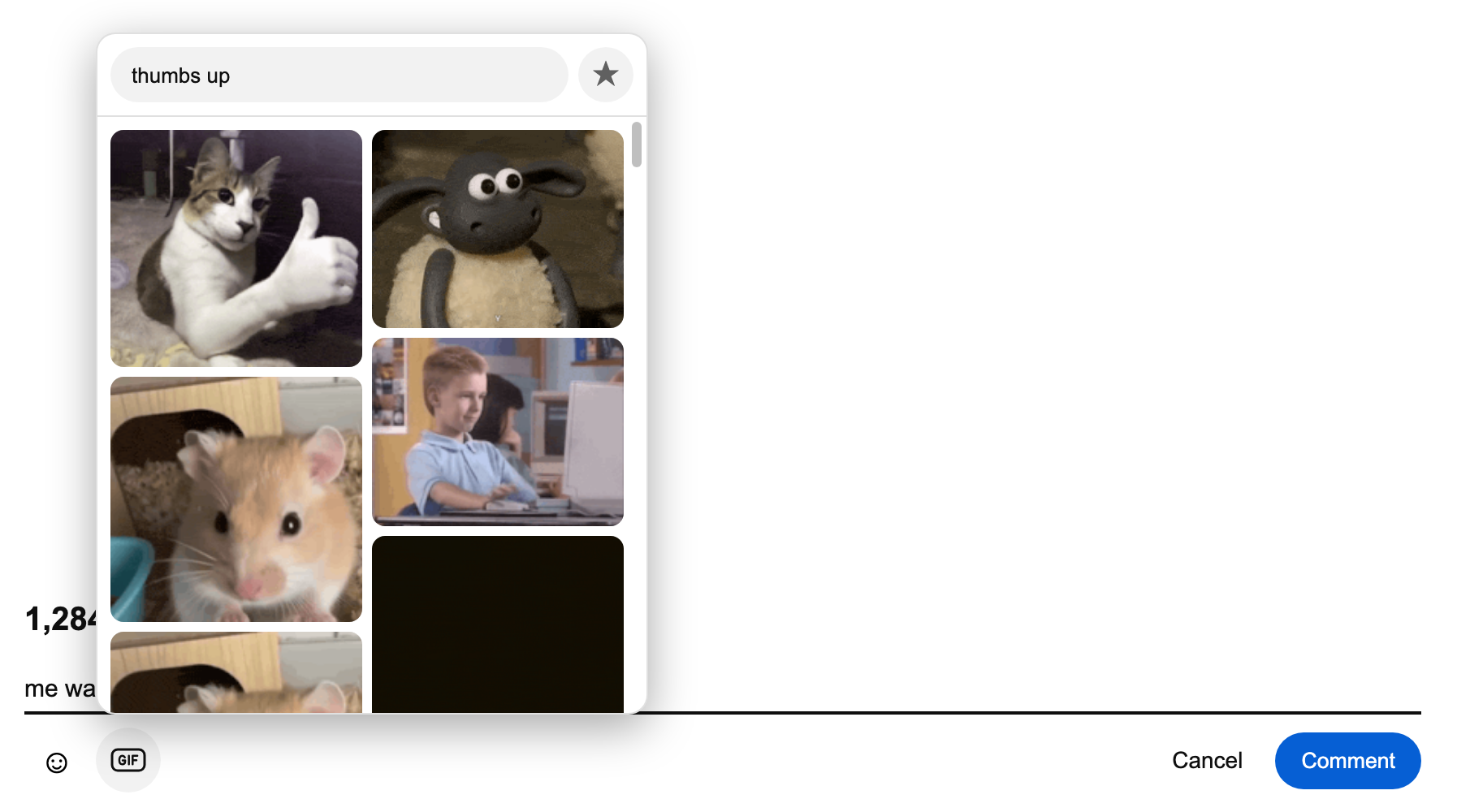
Searching the picker for "thumbs up".
How to Comment a GIF in the YouTube Phone App
On a phone the GIF button is official, so there is nothing to install. Update the YouTube app, open a video, tap the comment box and look for the GIF option beside the emoji key. Pick a GIF from the searchable library and send the comment.
If the GIF option is missing, the rollout has not reached your account. Updating the app is the only step you control. Until the button arrives, the computer method above is the way to post a GIF.
Which GIF YouTube Accepts
A GIF comment is more limited than a GIF in a chat app. These limits come from how YouTube answers GIF comments, as documented by the Desktop GIFs project, not from an official YouTube help page.
| Rule | What it means for you |
|---|---|
| Tenor GIFs only | A GIF file from your computer cannot be posted |
| G-rated GIFs only | YouTube turns down any GIF that Tenor does not rate for all audiences |
| No stickers or still images | Only animated GIFs appear in the picker |
| New comments and replies only | You cannot add a GIF while editing a comment or writing a channel post |
If you want a GIF of your own words instead, the YouTube comment GIF generator turns any comment into an animated GIF for video edits and chat apps. It cannot be attached to a YouTube comment, for the reason in the first row.
Fix Common GIF Comment Problems
Most problems clear after a refresh of the YouTube tab.
| What you see | What to do |
|---|---|
| No GIF button in the comment box | Refresh the YouTube tab |
| "Not ready in this tab yet" | Wait a few seconds or refresh the tab |
| "Press Comment to send the GIF" | Press YouTube's own Comment button |
| "YouTube does not accept this GIF" | The GIF is not rated G. Pick a different GIF |
| "Manifest file is missing or unreadable" | Choose the folder with manifest.json directly inside it |
| Search finds nothing in Firefox | In about:addons, allow the add-on to access tenor.com |
When a post fails, nothing is published and your text stays in the box, so you can simply try again with another one.
Is It Safe to Comment a GIF With an Extension?
YT Comment GIF is open source under the GPL-3.0 license and needs no account or API key. It collects nothing and never reads your YouTube credentials: YouTube's own page sends the comment, and the extension only adds the GIF to it. Search requests go to Tenor without your cookies.
It is still unofficial and not affiliated with YouTube, Google or Tenor. It sends a field that the desktop site does not use itself, so it can stop working whenever YouTube changes something, and using it is at your own risk under YouTube's Terms of Service. Until the store listings are live, updates are manual: download the new ZIP and load it again.
For a short version of how to comment GIF on YouTube and the current rollout status, see the YouTube comment GIF overview.